Getting started
Your dashboard
See birthdays, work anniversaries, announcements and holidays at a glance, punch in or out from the top of any screen, and, as an HR Admin, work through your queue and see who is ready for payroll.
Your dashboard
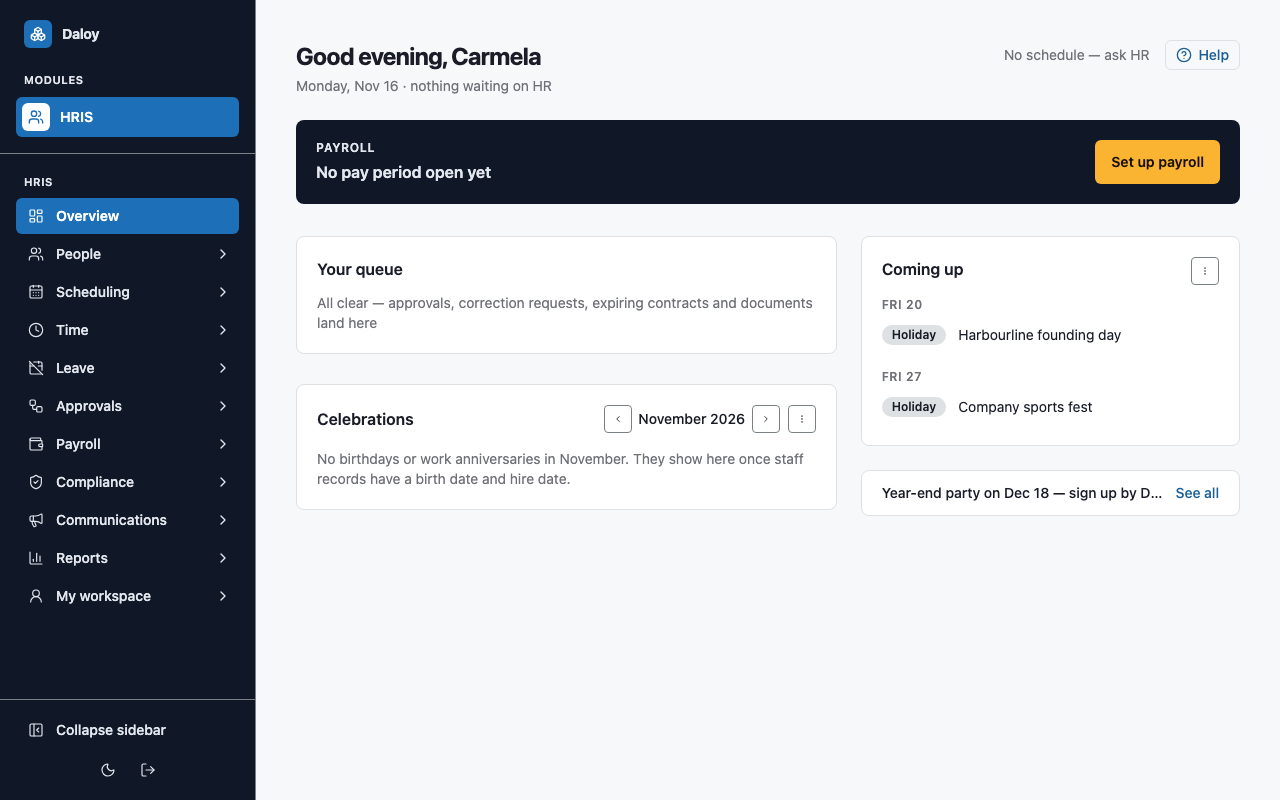
When you open HRIS, HR Admins land on "Overview" and staff land on "Home". Both open with a greeting and today’s date. "Overview" shows "Your queue", "Celebrations", "Coming up" and the pinned announcement. "Home" shows "Announcements", "Celebrations" and "Upcoming holidays".
- At the top of the side panel, click the module switcher (for example "Daloy / Admin") and choose "HRIS". "Overview" or "Home" opens.
- Today’s birthdays show at the top of "Celebrations", for example "Ana Cruz — birthday today". With no birthdays today, nothing shows there.
- "Birthdays" and "Work anniversaries" show side by side with their counts. To see another month, click ‹ or › beside the month name.
- On "Home", under "Announcements", read the three newest announcements. Pinned ones come first and carry a "Pinned" badge. Click "See all" to read every announcement.
- On "Home", under "Upcoming holidays", click the "Upcoming holidays options" button (⋮) beside the title, then change "Month" to see the holidays in another month.
- On "Overview", the pinned announcement shows on its own line under "Coming up", or the newest one if none is pinned. Click "See all" to read every announcement.
- Birthdays show the month and day only, for example "Oct 29".
- Anniversaries show whole years of service, for example "5 years · Oct 12". Staff in their first year are not listed yet.
- Only active staff are listed. Someone whose record has no birthdate is left out of birthdays.
- Staff see the holidays for everyone and for their own work location. HR Admins see every holiday.
- Only HR Admins see the payroll band, "Your queue", "Coming up", "Export CSV" and "Add holiday".
- Announcements show only when your organization uses them.
- Each card loads on its own. If one says, for example, "Couldn’t load Celebrations.", click "Retry". The other cards keep working.
Punch from the header
Once your HR Admin has given you a schedule, you can record your time from the top of any screen, without opening "My attendance".
- At the top of the screen, find today’s times, for example "In 8:02 AM · Out —".
- Click "Time in" when you start, or "Time out" when you finish. The button always names the punch you are due to make next.
- A box asks, for example, "Time in at 8:02 AM?". Click "Time in" (or "Time out") to record it, or "Cancel" to stop.
- Daloy confirms the time, for example "Timed in at 8:02 AM.", and your times update.
- The time in the box is only a preview. Daloy records the time it receives your punch, not the time on your own device.
- If you have no schedule yet, the top of the screen shows "No schedule — ask HR" and no button. Ask your HR Admin to assign you a schedule.
- Once you have timed in and out for the day, the button goes away and only your times show.
- If that punch is already recorded, Daloy says so and shows your times again. The same punch is never recorded twice.
- On a phone your times always show at the top, beside the button, and stay there after you time out.
- If you have no staff record, or your organization does not use time tracking, you see no times and no button.
What's next
- If a recorded time is wrong, see If a time is wrong
For HR Admins: Your queue and payroll band
On "Overview", the payroll band shows how close the pay period’s cutoff is, and "Your queue" lists what is waiting on you, so you can act on it in one place. The line under the greeting, for example "3 things waiting on HR", adds up the counts in "Your queue". With nothing waiting it reads "nothing waiting on HR". A row that could not load adds nothing to the count.
- At the top, read the payroll band. It starts with "PAYROLL" and the pay period’s dates, then a headline such as "Cutoff in 3 days — 2 correction requests still open", "Cutoff today" or "Cutoff passed Nov 15, 2026".
- Under the headline, "Ready for payroll" shows how many staff are ready, for example "Ready for payroll 18 / 20", with a bar. Click "Open payroll" to review the pay period.
- Under "Your queue", read the rows. Each shows a count, a short detail and either how long the oldest item has waited, for example "Oldest 3 days", or the first date due, for example "First Nov 2".
- "Approvals waiting" counts the requests waiting on your step, with the count per type, for example "Leave 4 · Overtime 2", and "Oldest 3 days". Click it to open "Approvals".
- "Due for regularization", "Correction requests", "Contracts ending" and "Documents expiring" each open their list in a side panel. Click a staff member’s name to open their record.
- In "Correction requests", fix the staff record first. Then click "Mark done" on the request, and "Mark done" again to confirm.
- Under "Coming up", read the next 14 days, grouped by day: "TODAY", then for example "WED 18". Each item carries a tag: "Birthday", "Anniv.", "Regular.", "Contract" or "Holiday". With nothing ahead, it says "No holidays or contract dates in the next 14 days".
- To add a holiday, open the "Coming up options" menu (⋮) and click "Add holiday". Fill in the panel, then click "Add holiday".
- To download a month’s birthdays, pick the month with ‹ › under "Celebrations", open the "Celebrations options" menu (⋮) and click "Export CSV".
- "Ready for payroll" counts the active staff scheduled in the current pay period who have no missing time-out and no open correction request, out of all active staff scheduled in it. It counts the days from the start of the period up to today, or up to the end of the period if that comes first.
- With no pay period open, the band says "No pay period open yet" and "Set up payroll" takes you there. The band shows only when your organization uses payroll.
- If the band says "Couldn’t load payroll.", click "Retry".
- Rows with an overdue or expired item come first, then the rows with the most items. Rows that could not load come last. A document that has already expired shows "Expired" in red.
- A queue with nothing in it does not get a row. Empty queues join one line instead, for example "All clear: contracts ending, documents expiring". With nothing waiting at all, "Your queue" says "All clear — approvals, correction requests, expiring contracts and documents land here".
- A row that shows "—" and "Couldn’t load" could not be read. Reload the page to try again.
- A row appears only when your organization uses the feature behind it.
- The birthdays file lists the month and day only.
- "Add holiday" appears once at least one holiday type is set up.
What's next
- To set up holiday types, see Set up holiday types
Common questions
Why isn't my birthday showing?
Celebrations lists a birthday only when the staff record has a birthdate. There is no birthdate on your record, so ask your HR Admin to add it. Your birthday then shows with the month and day only.
Why can't I punch from the header?
If the top of the screen shows "No schedule — ask HR", you have no schedule assignment yet. Ask your HR Admin to assign you a schedule. If you see no times and no button at all, you have no staff record, or your organization does not use time tracking. Ask your HR Admin to add a staff record for you, or to check whether time tracking is on.
Why is someone not ready for payroll?
On the payroll band, HR Admins see a staff member as not ready for payroll while a day in the current pay period has a missing time-out (a missing punch), or while they have an open correction request. Once an HR Admin fixes the punch, or resolves the correction request and clicks "Mark done", they count as ready.