For staff
Time in and time out
Record the start and end of your work day at the kiosk or on your own screen.
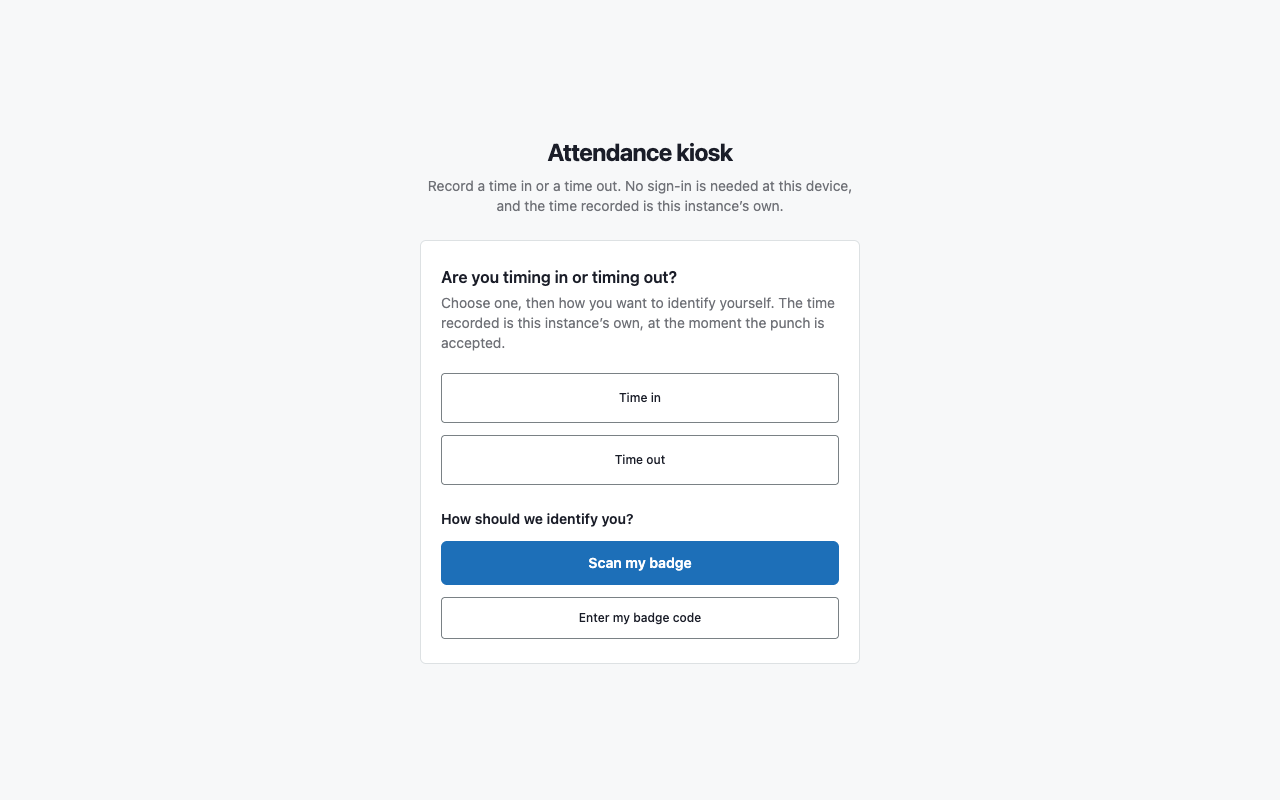
At the kiosk
- Tap "Time in" when you arrive, or "Time out" when you leave.
- Choose how to identify yourself: "Scan my badge", "Enter my badge code" or, where your workplace uses it, "Use face check".
- If you type your code, enter it in "Badge code" and tap "Use this badge code".
- Check that your name is right, then tap "Record this punch".
- When you see "Recorded", you are done. Tap "Next person" for the next colleague.
- If the name shown is not yours, tap "Re-enter code" or "Rescan".
- The face check never keeps your picture.
On your own screen
You can also record your time from "My attendance" on your phone or computer, once your HR Admin has given you a schedule.
- Sign in, and open HRIS from the Modules list if it is not already open.
- Open "My attendance".
- Click "Time in" or "Time out".
If a time is wrong
A recorded time is never replaced, and you cannot type one in yourself.
- Tell your HR Admin which day and time is wrong, or open "My record", click "Request a correction" and describe the day and time.
- An HR Admin reads your request and fixes your record.