For HR Admins
Holidays and closed days
Keep the holiday calendar up to date so pay and attendance treat those days correctly.
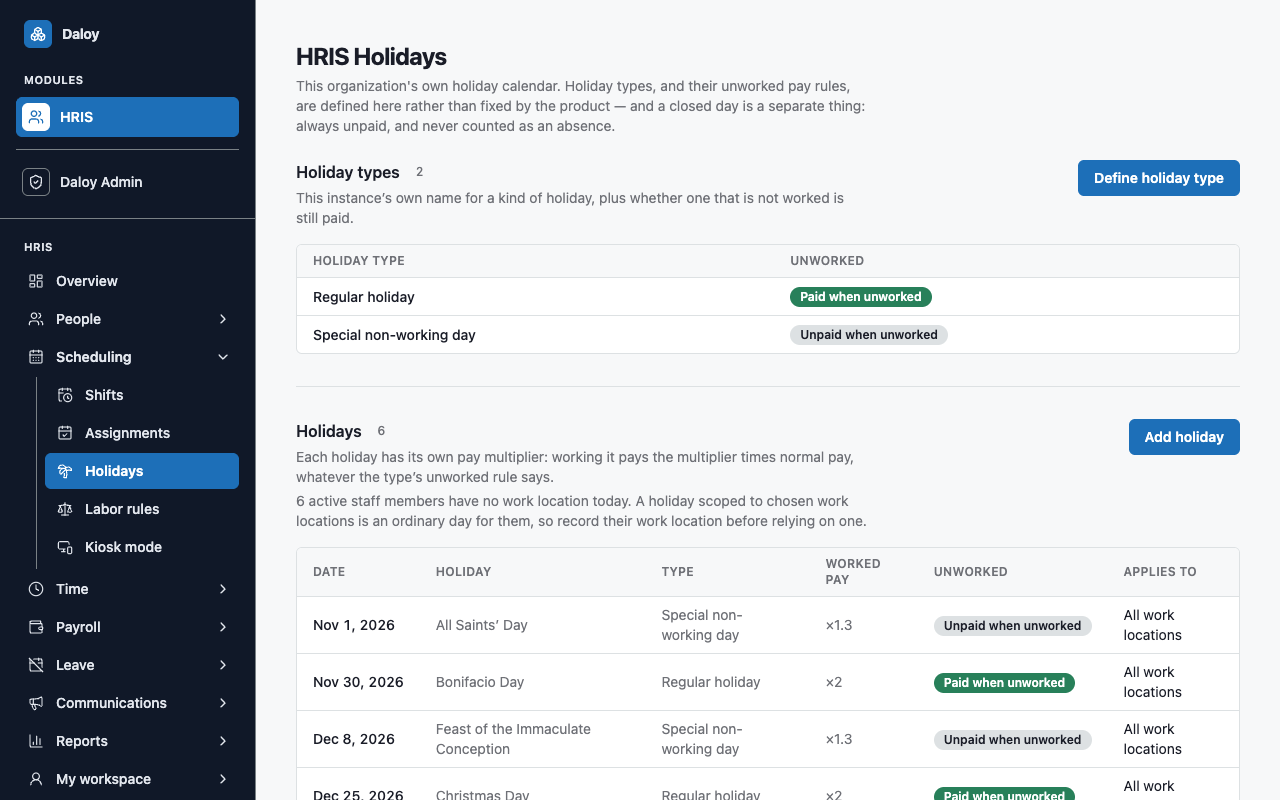
Set up holiday types
Each holiday belongs to a type, such as "Regular holiday" or "Special non-working day". You decide the types your organization uses.
- In the side menu, open Scheduling › Holidays.
- Under holiday types, click "Define holiday type".
- Type a "Name".
- Tick "Still paid when not worked" if staff are paid for this day even when they stay home.
- Click "Define holiday type".
Add a holiday
- Under holidays, click "Add holiday".
- Choose the "Date" and the "Holiday type", and type a "Name".
- Set the "Worked pay multiplier", for example 2 for double pay when someone works that day.
- Under "Applies to", keep "All work locations" or choose "Chosen work locations only" for a local holiday.
- Click "Add holiday".
- Each date can hold one holiday. Holidays are not filled in for you, so add each year’s holidays as they are announced.
Record a closed day
Use a closed day when your workplace shuts for a day that is not a holiday, for example after a typhoon.
- Under closed days, click "Record closed day".
- Choose the "Date" and, if you like, add a note.
- Click "Record closed day".
- A closed day is unpaid, and it is never counted as an absence.