Getting started
Approvals and requests
See how a request moves from step to step, set who approves each kind of request, decide requests waiting for you, and file, withdraw or ask to cancel your own.
How approvals work
Every kind of request, such as leave or overtime, goes through its own chain of steps. A step is one of "Reliever", "Dept supervisor", "Dept head" and "HR".
- When a request is filed, it waits on the first step of its chain.
- When that step approves, the request moves to the next step.
- The request is approved only when the last step approves.
- If any step denies it, the request is denied and goes no further.
- If the person who filed has no department on the filing date, or the department has no supervisor or head on that date, that step is skipped.
- Nobody decides their own request. If you are the approver of a step on your own request, that step is skipped.
- Open a request to see its "Request detail". The "Approval trail" there shows every step, who decided it and when, and why a step was skipped.
For HR Admins: Set up approval chains
Each kind of request has its own chain. Until you change it, HR decides alone.
- In the side menu, open Approvals › Approval chains. Each kind of request has a row with its steps.
- Click "Edit" on the row you want to change.
- To add a step, choose it under "Add step" and click "Add".
- To change the order, click "Move up" or "Move down" on a step. To take a step out, click "Remove".
- Click "Save chain".
- "HR" is always the last step and cannot be moved or removed.
- "Reliever" can be added only for Leave and Schedule change.
- A change applies to requests filed from now on. Requests already filed keep the chain they were filed with.
For HR Admins: Name department supervisors and heads
The "Dept supervisor" and "Dept head" steps go to the approvers you name for the department of the person who filed.
- In the side menu, open People › Departments.
- Click "Approvers" on the department.
- Under "Add an approver", choose the "Role": "Supervisor" or "Head".
- Choose the "Staff member" and the "Effective from" date.
- Click "Add approver".
- To stop someone approving, set their "Last day" and click "End".
- A department can have many supervisors but one head at a time. A new head replaces the current one: the current head’s last day becomes the day before the new head starts.
- Any one of the supervisors can decide the "Dept supervisor" step.
- The approvers are fixed when the request is filed. A later change does not move requests already waiting.
Decide a request in Approvals
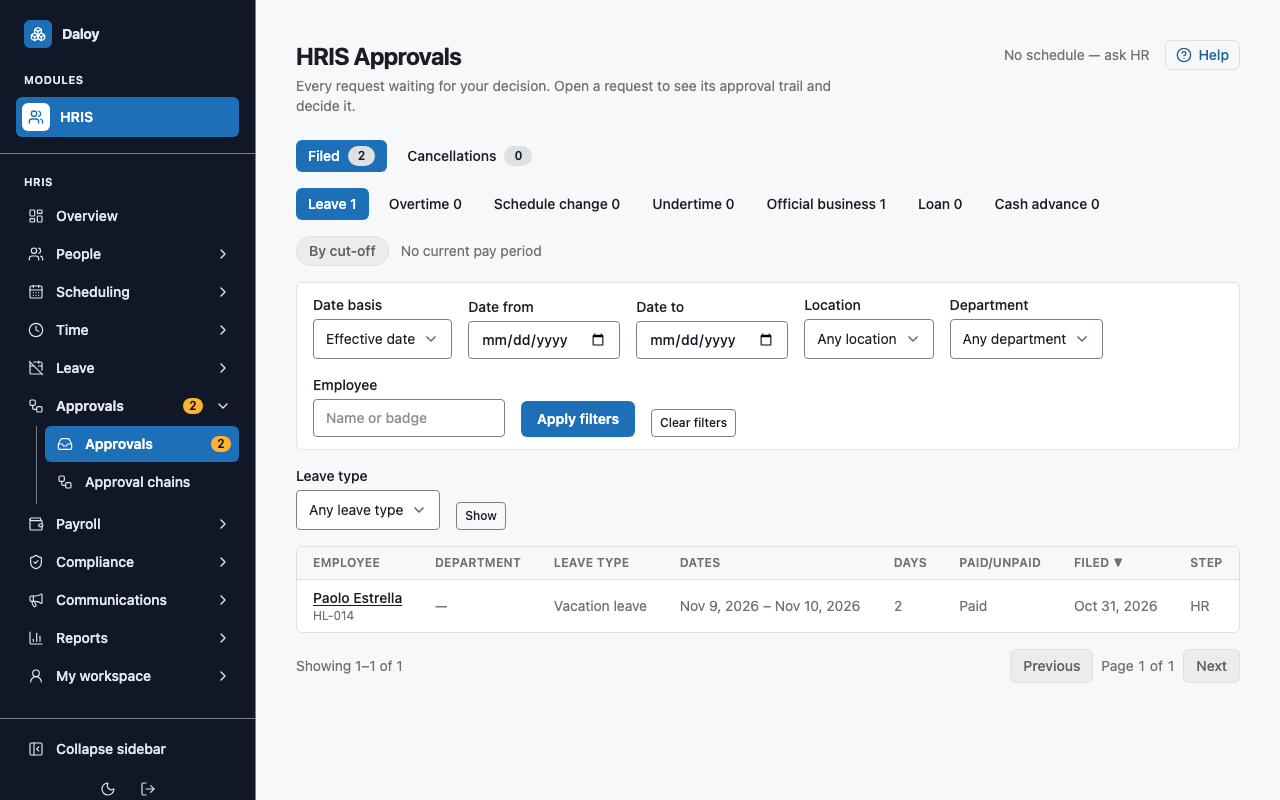
"Approvals" lists every request waiting for your decision, with a tab for each kind of request.
- In the side menu, open Approvals › Approvals.
- Choose "Filed" for new requests, or "Cancellations" for requests to cancel an approved one.
- Click the tab for the kind of request, for example "Leave".
- To narrow the list, set the "Date basis" ("Effective date" or "Filed date") with "Date from" and "Date to", turn on "By cut-off" for the current pay period, or choose a "Location", "Department" or "Employee". Then click "Apply filters".
- Click the person’s name on a request. "Request detail" shows what was asked for and its "Approval trail".
- To deny, type why in "Note (required to deny)". A note is optional when you approve.
- Click "Approve" or "Deny", then confirm your choice.
- If more steps follow yours, the request moves to the next step. Otherwise it is approved.
- A denied request is never decided again. The person can file a new one.
- In "Cancellations", "Approve" agrees to cancel the approved request ("Approve this cancellation?"). "Deny" declines it ("Decline this cancellation?"), and the request stays approved.
- Overtime, Loan and Cash advance requests are still decided on their own screens. Their "Request detail" links there, for example "Decide on the Overtime screen".
What's next
- If you are a reliever, supervisor or head, see Decide a request as a reliever, supervisor or head
Decide a request as a reliever, supervisor or head
When a request waits for you as its reliever, supervisor or head, you decide it from your own "Approvals" screen.
- Open "More". "Approvals" is listed there, with how many requests are waiting.
- Open "Approvals" and click the name on a request. "Request detail" opens.
- To deny, type why in "Note (required to deny)". A note is optional when you approve.
- Click "Approve" or "Deny", then confirm your choice.
- "Approvals" is listed on "More" only while a request is waiting for you.
- Each request shows where it waits, for example "With Dept supervisor · Filed Oct 29, 2026".
What's next
- To see how a request moves from step to step, see How approvals work
File a request
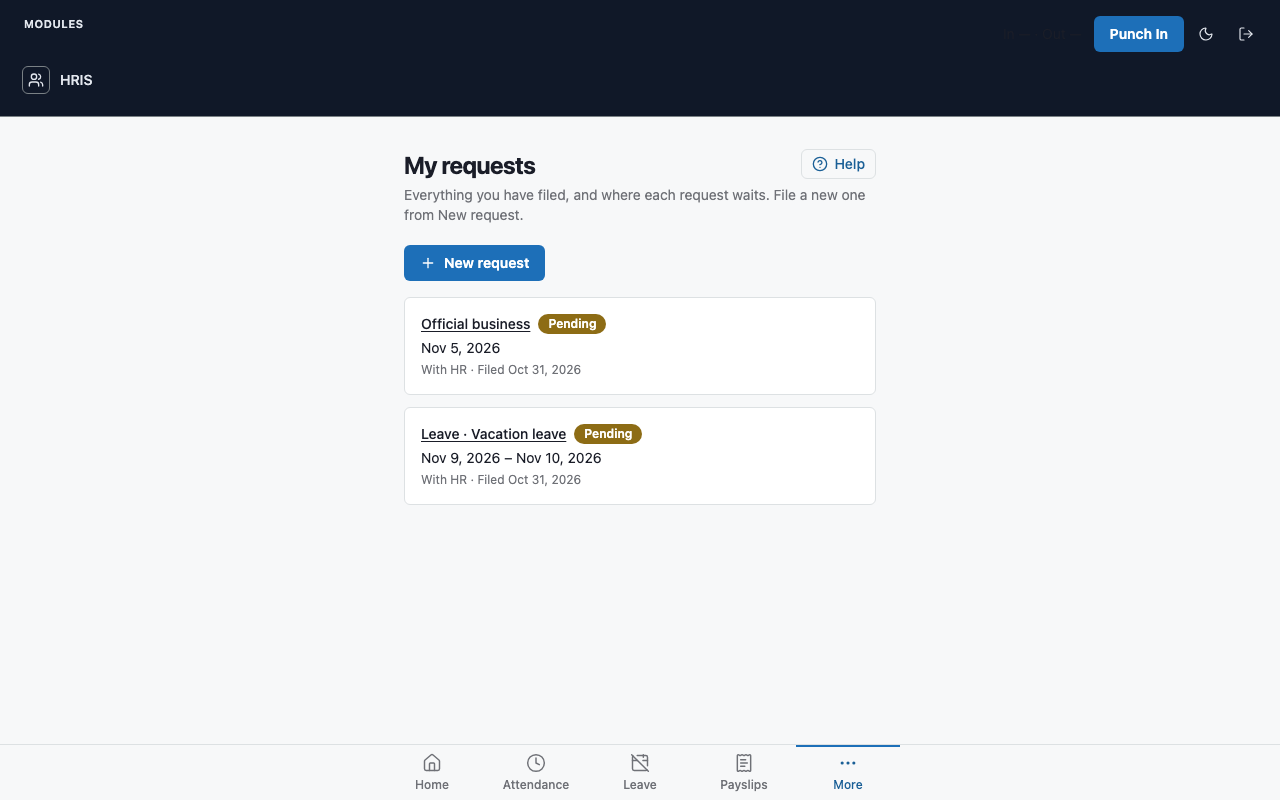
- Open "My requests". Staff find it on "More". HR Admins find it in the account menu: click your name (or your initials, when the side menu is folded) at the bottom of the side menu.
- Click "New request". Choose "File leave", "Request overtime", "Schedule change", "Undertime" or "Official business".
- Fill in the panel. If the request needs a reliever, choose one under "Reliever".
- Click "Send request".
- The request is listed under "My requests" with where it waits, for example "With Dept head".
- "Reliever" is asked for only when the chain for that kind of request has a "Reliever" step.
- "New request" offers only the kinds of request your organization uses.
- Loans and cash advances are filed from "My advances & loans".
What's next
- To apply for a loan or ask for a cash advance, see Your loans and cash advances
- To take back a request still waiting, see Withdraw a request
Withdraw a request
You can take back a request that is still waiting for a decision.
- Open "My requests" and click the kind of request, for example "Leave · Vacation leave". "Request detail" opens.
- Click "Withdraw".
- Click "Withdraw" again to confirm. The request will not be decided.
- "Withdraw" is offered only while the request is pending.
- Overtime requests cannot be withdrawn.
What's next
- If the request was already approved, see Ask to cancel an approved request
Ask to cancel an approved request
An approved request cannot be withdrawn. Instead, you ask your approvers to cancel it.
- Open "My requests" and click the kind of request on the approved one. "Request detail" opens.
- Click "Request cancellation".
- Type a "Reason".
- Click "Request cancellation" to confirm.
- The request stays approved until the last approver agrees to cancel it. If they decline, nothing changes.
- While your approvers decide, the request shows "Cancellation pending".
- If a request can no longer be cancelled, "Request detail" says "This request can no longer be cancelled." instead of showing the button.
- You can ask to cancel Leave, Schedule change, Undertime and Official business requests.
What's next
- To see how approvers decide a cancellation, see Decide a request in Approvals