For HR Admins
Shifts and schedules
Define the shifts your staff work, then assign each person the schedule they follow.
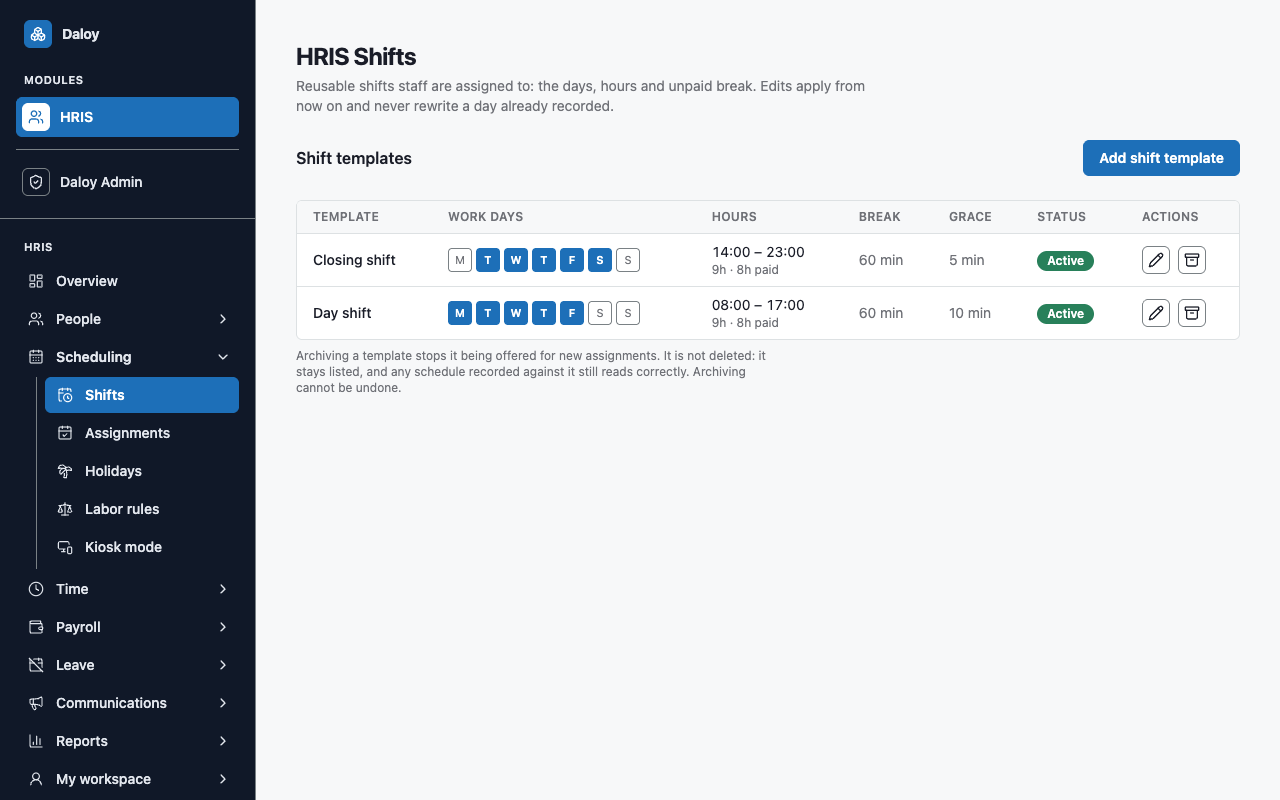
Define a shift
- In the side menu, open Scheduling › Shifts.
- Click "Add shift template".
- Type a "Name", such as "Morning".
- Set the "Start time" and "End time".
- Set the "Unpaid break (minutes)" and the "Grace (minutes)" allowed before someone counts as late.
- Tick the "Work days", or use "Weekdays" or "Every day".
- Click "Define template".
- An end time at or before the start time runs into the next day, for a night shift.
- A change to a shift applies from now on. Days already worked keep the shift they had.
Assign a schedule
- Open Scheduling › Assignments.
- Choose the staff member.
- Click "Assign schedule".
- Choose the date it "Starts on".
- Under "Which shift", choose one of your shift templates, or "A one-off schedule for this person" and set its times.
- Click "Assign schedule".
- Lateness, undertime and absences are worked out against the schedule a person has on each day.