For HR Admins
Run payroll
Generate payslips for a pay period, check them, add adjustments and verify them.
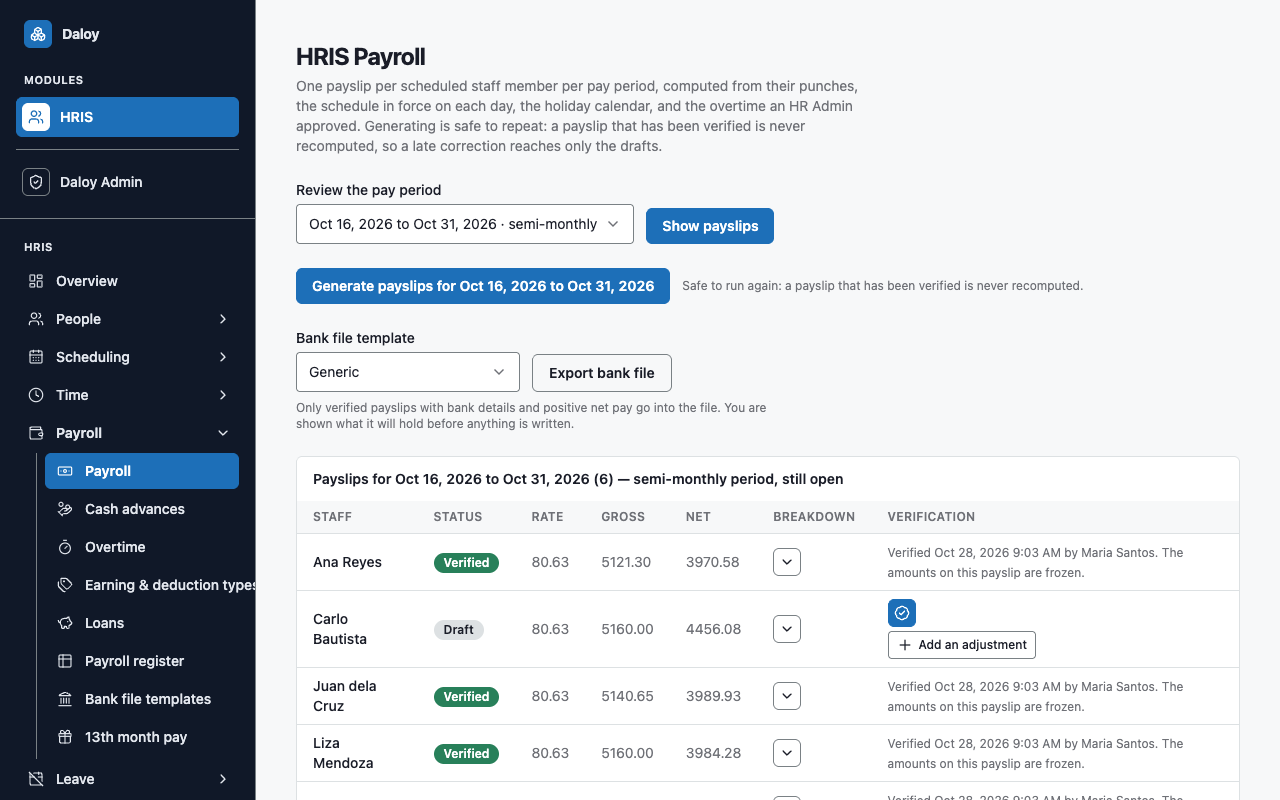
Generate payslips
Pay periods open by themselves once staff start recording time, so there is nothing to create first.
- In the side menu, open Payroll › Payroll.
- Under "Review the pay period", choose the period and click "Show payslips".
- Click "Generate payslips for …" with the period’s dates.
- You can generate again at any time, for example after fixing a time record. Verified payslips are never changed.
Check a payslip and add an adjustment
- Click "Show breakdown" on a payslip to see every earning and deduction.
- To add a one-off bonus or deduction, click "Add an adjustment".
- Choose the earning or deduction type, type the "Amount" and a "Reason".
- Click "Add adjustment".
Verify payslips
- When a payslip is right, click the "Verify" button (the tick) on its row.
- Read the confirmation and click "Verify payslip".
- Verifying freezes the payslip and cannot be undone. Only verified payslips go into the bank file.
- Staff see their payslip under "My payslips".
Payroll register and summary
- Open Payroll › Payroll register.
- Choose the period and click "Show the register", or open the Summary tab and click "Show the summary".
- Click "Export CSV" to open it in a spreadsheet.