For HR Admins
Announcements, memos and letters
Post announcements, issue memos that staff acknowledge, and generate letters from templates.
Post an announcement
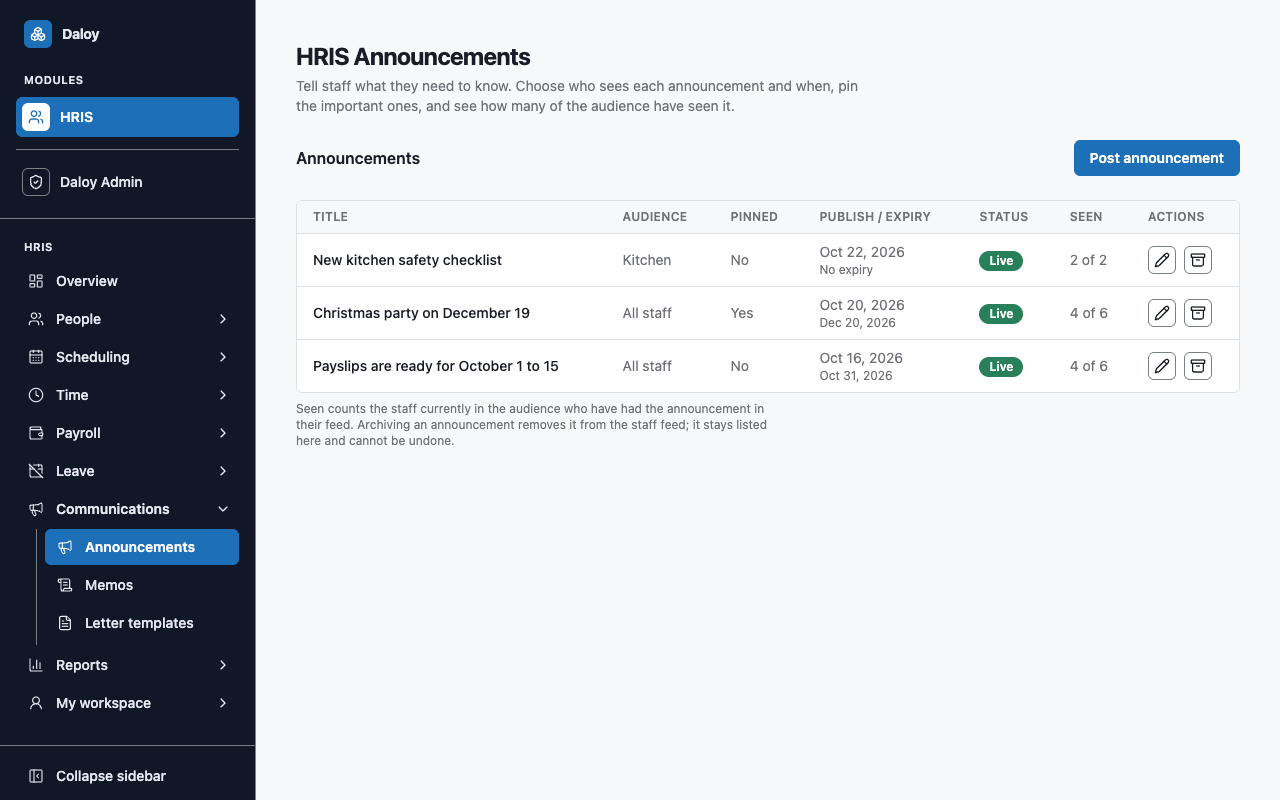
- In the side menu, open Communications › Announcements.
- Click "Post announcement".
- Type a "Title" and the "Text".
- Under "Audience", choose "All staff" or "Chosen departments".
- Tick "Pin to top" to keep it above other announcements.
- Choose the "Publish date" and, if you like, an "Expiry date (optional)".
- Click "Post announcement".
- The "Seen" column shows how many of the audience have opened it.
Draft and issue a memo
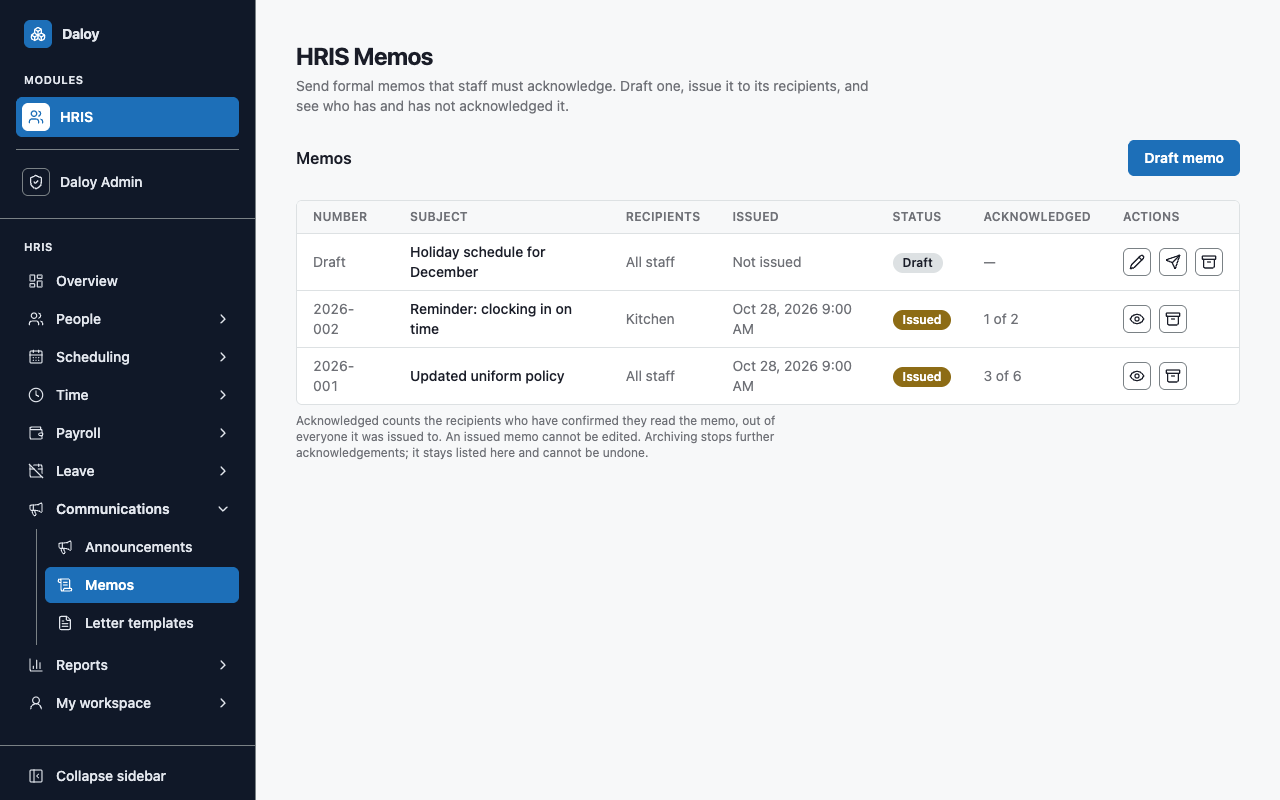
- Open Communications › Memos.
- Click "Draft memo".
- Type the "Subject" and the "Text", and choose the "Recipients": "All staff", "Chosen departments" or "Chosen staff".
- Add an attachment if you need one.
- Click "Draft memo". You can still change a draft and click "Save draft".
- When it is ready, click the "Issue" button (the paper plane) on its row, then "Issue memo".
- Issuing gives the memo its number and freezes it. Nobody can edit it afterwards.
See who has read a memo
- On the Memos screen, the list shows how many recipients have acknowledged each memo.
- Click the "View" button (the eye) on a memo to see the "Acknowledged" and "Not yet" lists, with names and times.
- Archiving a memo cannot be undone. Archived memos stay readable.
Generate a letter
Letter templates such as a certificate of employment fill in the staff member’s details for you.
- Open Communications › Letter templates.
- On the template you want, click "Generate for…".
- Choose the "Staff member" and click "Generate letter".
- Check the letter and click "Print".
- To make your own template, click "New template", write the "Letter text", use "Insert a merge field" for details like the name or position, and click "Save template".
- Each generated letter is noted on the staff member’s History tab.